
Remove a Green Screen
and Download a Clean PNG
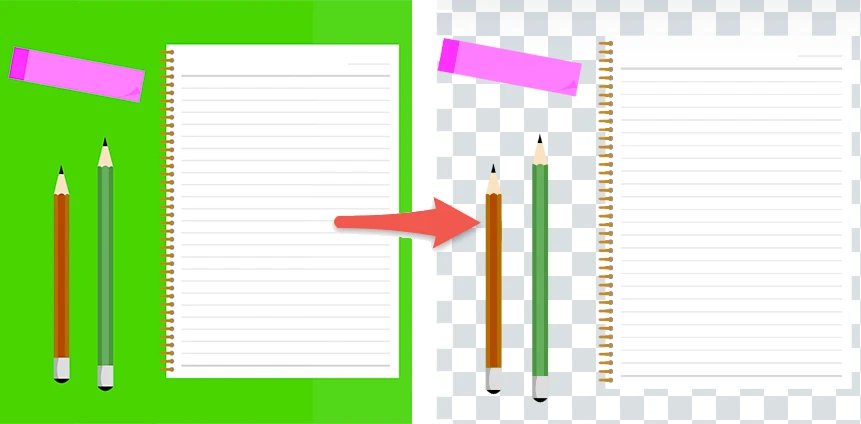
Choose the background color to remove a green screen, blue screen, or other solid backdrop.
Fine-tune uneven lighting, shadows, and color spill, then download a transparent PNG.
Upload an Image
Drop an image here or choose a file
PNG, JPEG, or WebP · Paste supported
Transparency Settings
Quick Presets
Background Color
With the eyedropper active, click the background area you want to make transparent.
Fine-Tune
Increase this value to remove a wider range of colors similar to the selected background.
Softens the transition between the subject and transparent area to reduce jagged edges.
Advanced Settings
Removal Details
While enabled, click the preview to add up to eight background colors to remove.
Removes lighter and darker versions of the background color caused by shadows or uneven lighting.
Trims a thin line of leftover background color inward around the subject.
Blends the edge between the subject and the transparent area.
Edge Cleanup
Reduces green or blue color reflected around hair, clothing, and other edges.
Controls how far inward the color-spill correction extends from the subject edge.
If your subject contains colors similar to the background, those areas may also become transparent.
Original size: — · Output size: — · Format: transparent PNG
Best For Solid-Color Backgrounds
This tool works best with green screens, blue screens, and other mostly solid-color backgrounds. It does not automatically cut out subjects from complex scenery.
How to Remove a Green Screen
1. Choose an image → 2. Click the background → 3. Adjust and download
Remove Green Screen and Chroma Key Backgrounds
A green screen places a solid green backdrop behind a person or object so the background can be replaced later. This chroma key technique is common in video and photography. With this free online green screen remover, you can select the green area, make it transparent, and download the result as a PNG. The tool also works with blue screens and lets you pick any background color with the eyedropper or color picker. Controls for lighting variation, edge smoothing, erosion, feathering, and spill reduction help with shadows and uneven studio lighting. All image processing happens locally in your browser, so you do not need to upload your photo to a server.
Make Any Solid Background Color Transparent
Click the preview with the eyedropper to choose the exact image color you want to remove. In addition to green and blue, you can make red, white, or another solid background transparent. This is useful for logos, illustrations, icons, and product photos. You can open PNG, JPEG (JPG), and WebP files; the finished image is saved as a PNG because PNG supports transparency. If your subject contains a color close to the background, part of the subject may also be removed. For example, use a lower color tolerance when separating a white product from a white background. This is a color-based background remover, not an AI people cutout tool for busy or detailed backgrounds.
How to Fix Green Edges and Leftover Background
If green remains after removal, first click the actual background again to sample a more accurate color. Then adjust one setting at a time while watching the preview. Small changes usually make it easier to identify what needs improvement.
Color Tolerance
Increase the tolerance to remove more colors close to your sample. Raise it when small green spots remain; lower it if parts of the subject disappear.
Lighting Variation
Use this when shadows or lighting create lighter and darker shades of green. It is especially useful when only darker parts of the backdrop remain.
Edge Smoothing
Increase this if the outline of a person or object looks jagged. Adjust gradually so the subject does not become overly soft.
Edge Erosion
This trims a thin line of green or blue that remains around the subject. Start low, because a high setting can make the outline look too thin.
Spill Reduction
Reduce green or blue light reflected onto hair and clothing. Increase it when background color still appears to bleed around the edge after transparency is applied.
Images That Work Well
The best results come from still photos of people or objects shot against a green screen, blue screen, or another solid chroma key backdrop. The tool also works well for product images, logos, illustrations, and icons with a nearly uniform background. A clear color difference between the subject and the background makes edge cleanup easier. Even lighting and soft shadows usually require fewer adjustments.
Images That May Need Another Tool
This color-based remover is not designed for scenery, indoor photos, or other backgrounds made up of many colors. It may also remove parts of a subject that closely match the selected background color. The tool does not use AI to recognize people, isolate fine hair from a complex scene, or separate semi-transparent materials automatically. For a detailed or busy background, an AI subject-removal tool or a manual mask editor may be a better choice.
FAQ
Can I remove a background color other than green?
Yes. Use the eyedropper or color picker to select blue, red, white, or almost any other solid background color.
What is a green screen?
A green screen is a solid green backdrop used behind a person or object so the background can be replaced later. It is also called chroma keying.
Can I use this for chroma key images?
Yes. You can select and remove the background color from still images shot on a green screen or blue screen.
Can I make a JPG background transparent?
Yes. Open a JPG, remove the selected background color, and download the result as a PNG, which supports transparency.
Can I make a white background transparent?
Yes. Select white with the eyedropper or color picker. If your subject also contains white, those areas may become transparent too.
Can it remove shadows and uneven background colors?
Increase Lighting Variation to remove lighter and darker shades of the selected background color together.
Why are green parts of my subject disappearing?
Lower Color Tolerance or remove extra color samples. Areas that match the background color may become transparent.
Are my images uploaded to a server?
No. Your image is opened, processed, and converted to a transparent PNG entirely in your browser.
Can I download the image at its original size?
Yes. The preview may be scaled down, but the downloaded PNG keeps the original pixel width and height.