
Windows Utility

F1-Locker
Stop Accidental F1 Key Presses

Free yourself from the frustration of accidental "Help" windows in Excel or gaming interruptions.
A simple, powerful resident app to disable the Windows F1 key.

v1.1 | Windows 10/11 Support | No Registration

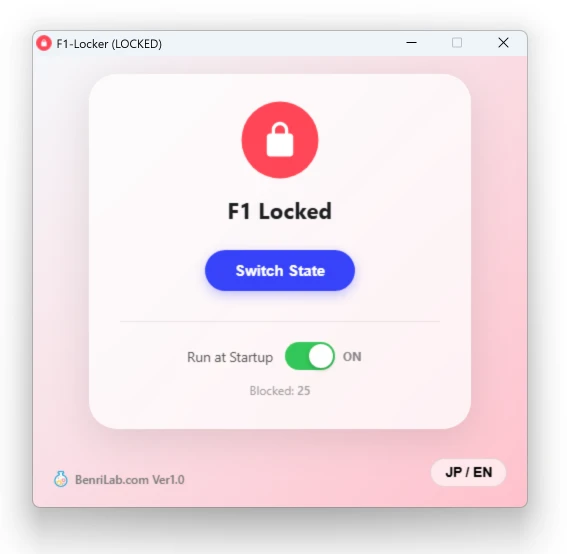
F1-Locker App on Desktop

F1-Locker Features

Simple, yet exactly what you need.

🛡️

Ironclad F1 Guard

Hooks and blocks F1 input at the OS level. Reliably prevents Excel Help, browser support pages, and gaming console triggers from interrupting you.

🔛

Instant Toggle

Enable or disable F1 only when you need it. Switch instantly via the system tray icon or the app window. "Disabled by default, enabled when needed."

🚀

Runs at Startup

Includes a "Run at Startup" feature. It automatically runs in the background when you turn on your PC, protecting you from F1 accidents without any extra effort.

Why is the "F1 Key" so annoying?

For Windows users—especially business professionals who live in Excel or PC gamers—the F1 key located at the top left of the keyboard is often considered the "ultimate enemy." The main reason is its placement: right next to the frequently used Esc key.

🚫 Common Tragedies
  • In Excel, trying to press "F2" to edit a cell but slipping and hitting "F1," causing the heavy Help window to pop up and freeze your workflow.
  • While playing FPS or MOBA games, accidentally brushing F1 when reaching for skills or weapons, opening a browser support page and minimizing your game at a critical moment.
  • During coding, accidentally opening IDE documentation due to a shortcut miss, breaking your concentration.
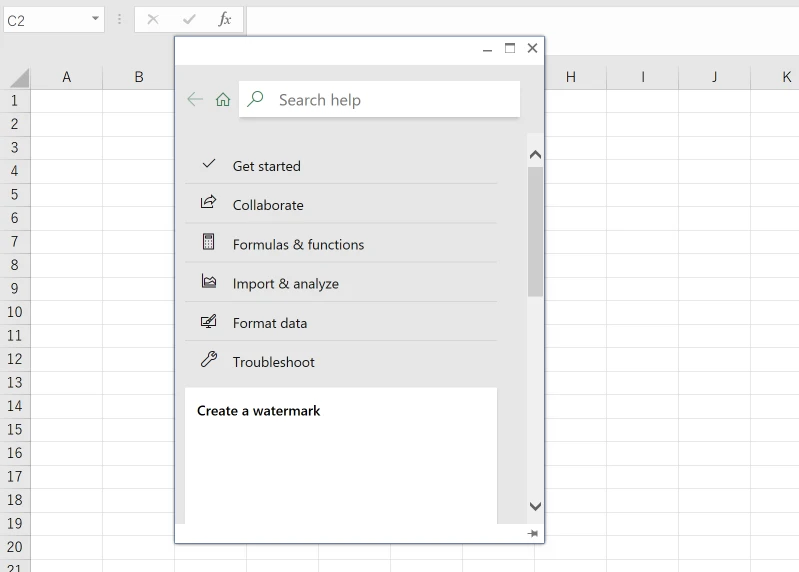
Excel Help window opening unintentionally

▲ A familiar moment of frustration for many.

Don't pull the keycap out. Use F1-Locker.

Some users resort to physical measures like "pulling the F1 keycap off the keyboard" or "jamming paper under it." However, this ruins the look of your hardware and becomes a problem when you actually need the F1 key (e.g., for BIOS settings or specific app shortcuts).

F1-Locker is a software solution that intercepts the F1 signal. You can smartly prevent accidental presses without physically damaging your keyboard.

Modern & Intuitive UI

The settings screen is beautiful and intuitive, featuring a large switch that lets you see the status at a glance.
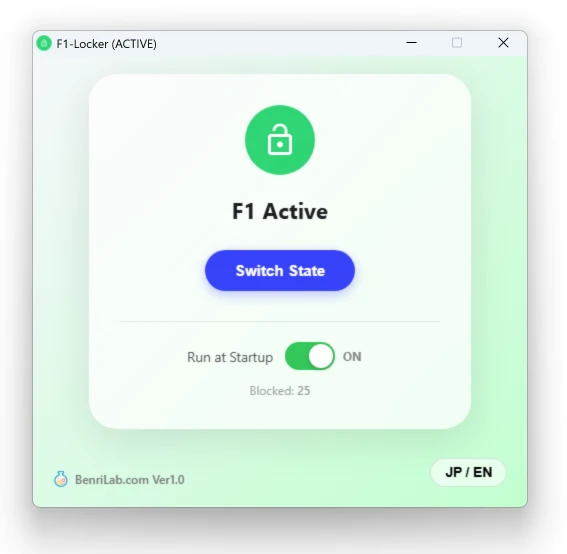
F1-Locker Main Settings Screen

▲ Simple main screen. Supports both English and Japanese.

System Tray Management

When minimized, F1-Locker sits quietly in your system tray (notification area), guarding against F1 presses. No intrusive windows. To change settings, simply double-click the tray icon or use the right-click menu.
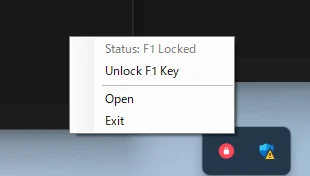
System Tray Right-Click Menu

▲ Quickly Lock/Unlock from the resident icon.

Block Counter

Includes a counter to visualize "how many F1 accidents were prevented." Seeing "Blocked: 12" at the bottom of the screen confirms that you saved time and focus that would have otherwise been lost.

How to Use

3 steps to end your F1 nightmares.

1

Download & Run

Download the ZIP file from the button below and unzip it. Double-click F1-Locker.exe to launch. No installation required (Portable).

2

Check Status

Upon launch, the screen turns red and says "F1 Locked". The F1 key is now disabled. Try pressing F1 in Excel to confirm nothing happens.

3

Keep it Running

Check "Run at Startup" to have F1 blocked automatically in the background every time you start your PC. The app stays in the tray even if you close the window.

Get a Stress-Free Workflow Now

No more accidental Help windows.
Boost your daily efficiency today.
Completely Free to use.

Download (ZIP)

File Size: ~1MB | Virus Scanned | Windows 10/11 (64bit) Only
If "Windows protected your PC" appears, click "More info" → "Run anyway".

System Requirements

OS Windows 10 / Windows 11 (64bit / ARM)
Requirements .NET Framework 4.8 or later
WebView2 Runtime
*Usually pre-installed on updated Windows 10/11 systems.
Version 1.1
License Freeware (Commercial use allowed)
Developer Benri Lab