
Now Playing Overlay Generator
Show the currently playing song on your OBS stream in real time.
A free tool with setlist controls and Spotify support.
Register songs before a singing stream, then switch to the next title with one tap.
Save the current song, design, and setlist in your browser. Useful when you want different setlists for different streams.
Tip: For OBS compositing, switch the preview background to green and apply a chroma key filter.
Free Now Playing Overlay for OBS, Singing Streams, and BGM Labels
Do These Streaming Problems Sound Familiar?
- Viewers keep asking what song is currently playing.
- Updating a music title label in OBS by hand takes too much effort.
- You want a simple setlist tool for singing streams.
- You want Spotify to automatically show the current track on stream.
Benri Lab's Now Playing Overlay Generator is a free web tool for streamers who want a clean music label on OBS.
Add this page as an OBS browser source to show the current song title and artist name on your stream.
It runs entirely in the browser, with no installation or account registration required.
Setlist Controls for Singing Streams
For karaoke or singing streams, prepare your songs as a setlist before going live.
You can register song titles and artists, reorder them with drag and drop, and switch the visible song with one tap during the stream.
This keeps the overlay updated without typing while you are live.
Automatic Song Display with Spotify
If you play BGM from Spotify during chatting, study, or work streams, Spotify mode can fetch the currently playing track automatically.
Connect your Spotify account and enter a Client ID from the Spotify Developer Dashboard. The overlay updates when the track changes.
The setup guide below explains the steps for beginners.
8 Design Templates
Choose from 8 templates: Record, Simple, Neon, 8-bit, Pastel, Cyber, Cafe, and Modern Japanese.
Each template changes the colors, font, icon, and overall style in one click.
You can also adjust the background color, text colors, font, shape, icon, spinning effect, and analyzer display manually.
How to Add It to OBS
- Design your widget on this page.
- In OBS Studio, add a Browser Source and enter this page URL.
- Adjust the size and position. Use chroma key if you want to remove the background.
The widget uses solid backgrounds, which makes chroma key compositing easier and keeps the edges clean.
Animation Modes
- Always Visible: Keep the widget on screen at all times.
- Notification Mode: Show the widget briefly when the song changes.
- Slide In: Animate the widget in from off screen.
You can also add a spinning icon and small analyzer bars for a lively music-overlay look.
Free and Browser-Based
The Now Playing Overlay Generator is free to use. Settings are saved in your browser with localStorage, so you can return later and keep working from the same setup.
How to Set Up Spotify Support
Before You Start
- Spotify Premium is required for playback-state access.
- Using a desktop browser is recommended.
- Privacy note:
Spotify may show permission items such as profile or email on the authorization screen. This is part of Spotify API authorization.
This tool uses only the currently playing track information and does not store or collect your personal information.
STEP 1. Open the Developer Dashboard
Open Spotify for Developers from the link below and sign in with your Spotify account.
Spotify Developer DashboardSTEP 2. Create an App
Click the Create app button in the dashboard.
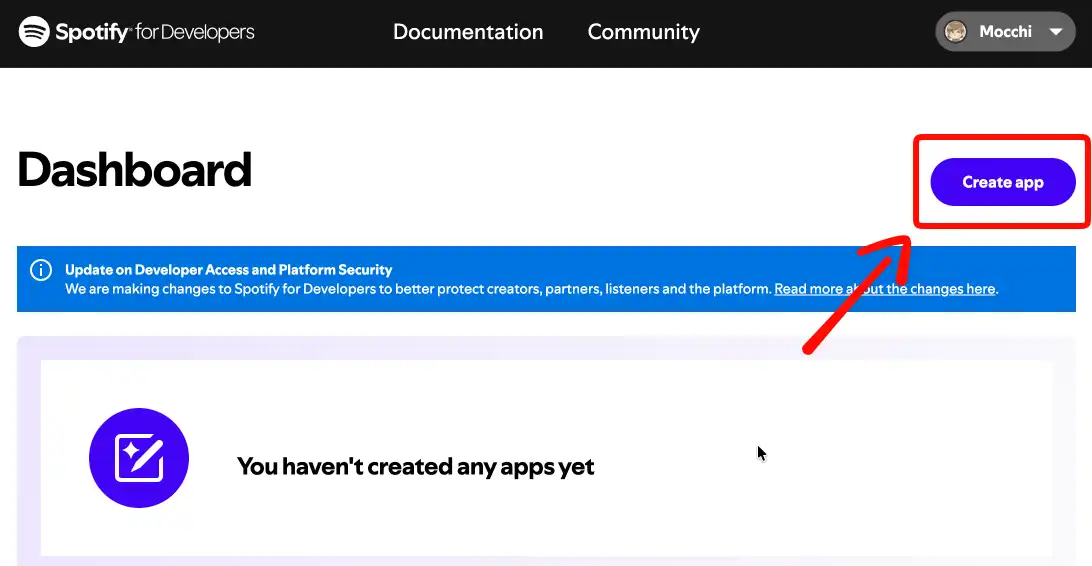
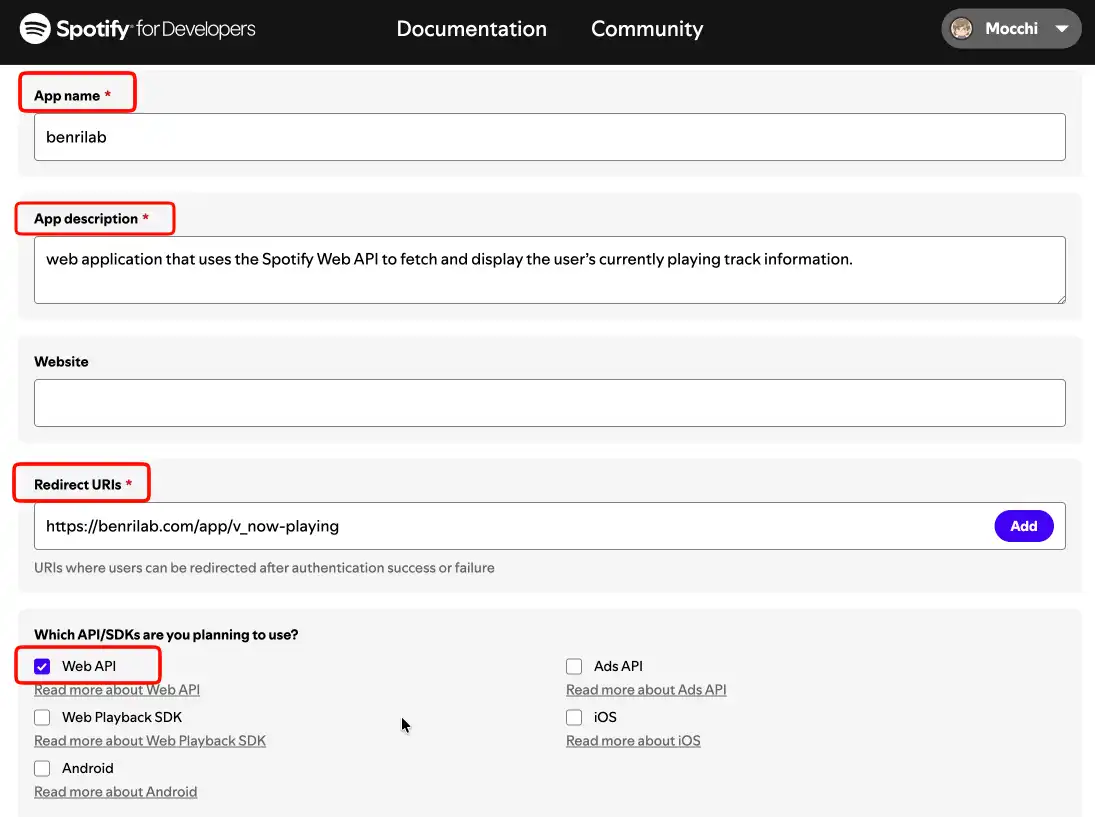
When the form appears, enter values like the examples below and press Save.
- App name:
NowPlayingWidget(any name is fine) - App description:
Streaming tool(any description is fine) - Redirect URI:
https://benrilab.com/en/app/v_now-playing/
Copy and paste this URL exactly. This is important. - Web API / SDKs: Check Web API
STEP 3. Copy and Paste the Client ID
After creating the app, click Settings.
In Settings, copy the value labeled Client ID.
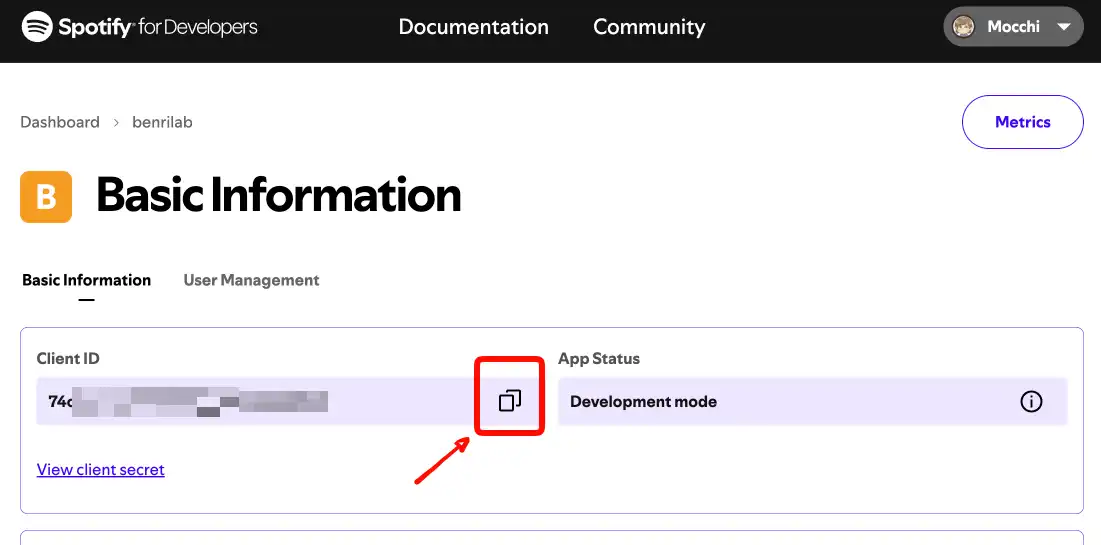
Paste it into the Spotify Client ID field in this tool, then press Connect Spotify.