
Audio
Fade In & Fade Out
Make your music end right on cue.
Smooth the beginning and end of MP3, WAV, or M4A audio.Choose an exact length, such as 30 or 60 seconds.Trim silence and process up to 20 files at once.

Drop audio files here
or choose up to 20 files
MP3, WAV, M4A, AAC, OGG, FLAC, AIFF / Multiple files / Up to 60 minutes per file (memory limits apply)
We check duration and estimated memory before loading large files. Some formats do not report duration; trim long recordings first if needed.
Checking duration and memory requirements before loading.
Play starts at the beginning of your selection. Click or tap the waveform to play from that point to the end of the selection. Use the arrow keys to move 1 second, or Space to play and stop.
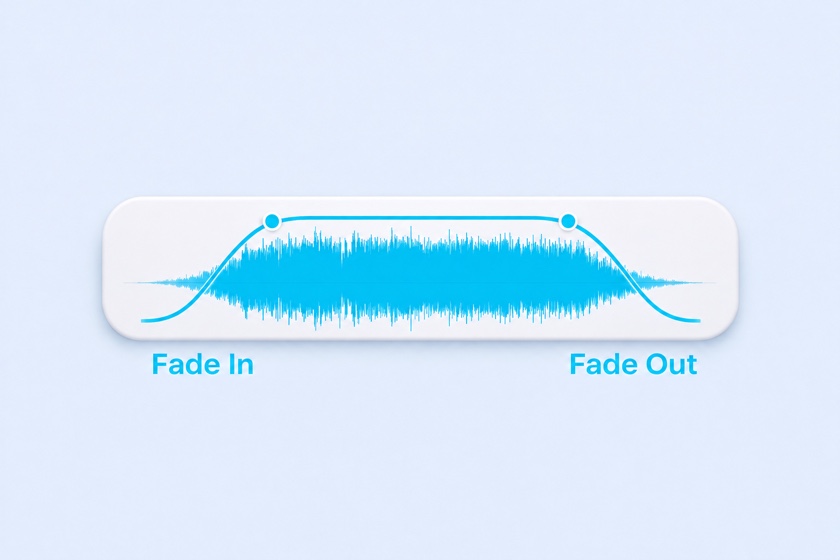
Drag the square handles on the volume envelope to adjust fades. Drag the top handles to adjust the selection. Arrow keys move 0.1 second; Shift + arrow moves 1 second. Settings apply to all files.
Fade previews loop the entire fade plus 2 seconds of context (at least 10 seconds, or the whole clip if shorter). Switch to the original for an A/B comparison at the same position. Preview audio is played before output compression or bit-depth conversion.
Files
The same settings apply to all files. Fade lengths and end positions are adjusted to fit each file.
Fade Settings
Enter 1:20 to start at 1 minute 20 seconds. If leading-silence trimming is enabled, playback starts at whichever position comes later. The same start time applies to every file.
Advanced: Fade Curve, Silence Trimming & Output
Fade Curve
Trim Silence
Keeps 0.1 second before and after the detected audio. Choose -60 if quiet endings or reverb tails are being cut off.
Output Format
When loading audio, the selected preset is applied. Without a selected preset, fade times, selection, and silence trimming return to their defaults.
Your faded audio is ready
How to fade audio in or out
- Choose one or more audio files. The waveform shows the selected section and volume envelope.
- Set Fade In and Fade Out in seconds, or drag the fade handles. Use Start Position and Set Output Length to make a 15-, 30-, or 60-second clip.
- Preview the beginning and ending. Switch on Listen to Original to compare.
- Click Apply Fades, listen to the result, and download. For multiple files, Download All as ZIP keeps the batch together.
Fade out music for videos, podcasts, and ringtones
For a YouTube video, try a natural fade-out of 5–8 seconds and set the output length to match your scene. For YouTube Shorts, Instagram Reels, TikTok clips, or short ads, try a 2–3 second fade so the music keeps its energy.
For podcast intros and voice memos, trim leading and trailing silence and try a short 0.3-second fade. For a ringtone, choose a 30-second section and add a short fade at each end. These are starting points: preview your audio before downloading.
Which fade curve should I choose?
Natural approximates a steady change in perceived loudness and works well for background music. Linear changes amplitude evenly; it can seem to disappear more suddenly near the end. S-Curve eases into and out of the fade, making it useful for short transitions and loops.
Trim a song before adding a fade
Set the start position using minutes:seconds, then choose an output length. For more detailed waveform trimming, use the MP3 & WAV Audio Cutter. To combine finished clips, use the Audio Joiner.
Frequently Asked Questions
Does fading audio reduce sound quality?
WAV output avoids lossy recompression, though conversion to 16-bit or 24-bit audio and stereo downmixing may still occur. MP3 and M4A are re-encoded. The original sample rate is kept where supported; MP3 output converts unsupported rates such as 96 kHz to a supported rate.
Can I fade out an MP3 on my phone?
Yes. Use Safari on iPhone or Chrome on Android. Available memory determines how much audio your device can process. Mobile loading has no additional duration or file-size cap imposed by this tool.
Can I export M4A audio?
Yes. Choose M4A (AAC) under Advanced settings. M4A export is limited to 20 minutes per file because it uses more memory. Choose MP3 or WAV for longer audio.
How many files can I process at once?
Up to 20 files with the same settings. With two or more completed files, you can download a ZIP. If you cancel a batch, completed files remain available.
Are my audio files uploaded?
No. Loading, fades, and encoding run in your browser. Audio files are not retained by the tool; remembered presets contain settings only.
Why do I see an out-of-memory message?
Decoded audio uses much more memory than a compressed file. An hour of stereo audio at 44.1 kHz can require about 1.3 GB. Trim the recording first or process fewer files. Choosing MP3 output does not reduce decoding memory.