
OBS Stream Effects
A transparent effects layer you drop into OBS as one source.
Add the Overlay URL as a Browser Source, and only the confetti, hearts, and music notes show up over your avatar or gameplay.
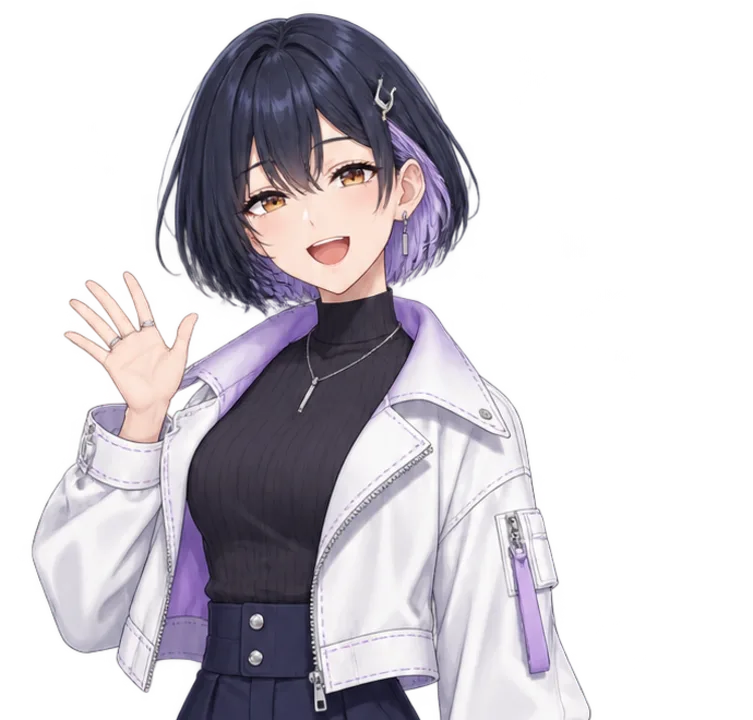
Drag to set where effects appear
Effect Pad
Click or press 1–8 to play in the preview
ShortcutsKeys 1–8 · these become your dock buttons
All effectsDrag one up to add it to your shortcuts
Buttons on this page only play in the preview. To show effects on stream, add the Dock URL to an OBS dock (step-by-step with screenshots).
You can also click or drag the preview, or type in numbers. Celebration effects always fill the whole screen.
Customize
This only changes the preview. Your OBS URL stays on "By date."
For streamers in Australia and other southern countries. New Year, Valentine's Day, Halloween, and Christmas stay on the same dates.
Enter your song's BPM and the glow sticks wave to the beat (one swing per beat). Any value from 60 to 200.
Amount, speed, size & display area
Applies to background particles. Effect Pad effects ignore this setting (snow buildup is hidden with "Top half only" to keep the bottom clear).
Snow buildup
Max height and starting amount are a percentage of the screen height. Snow starts at the starting amount and builds up to the max over the time you set (hidden with "Top half only"). "Where flakes land" piles snow up gradually wherever falling flakes touch down, blending into the snow below (the timing is approximate).
OBS URLs
- Paste URL 1 into a Browser Source
In OBS, click [+] under Sources → Browser. Set the width to 1920 and the height to 1080.
- Paste URL 2 into a dock
In OBS, open Docks → Custom Browser Docks, enter a name (like "Effect Pad") and URL 2, then click Apply. See the steps with screenshots
- Press a heart or note in OBS
When the dock says "Connected to the overlay in OBS," you're ready. Press a button, and if the effect shows up on your OBS canvas, you're all set.
- Hit the button right at zero
When your countdown hits zero, press Confetti or Party Popper in the dock. Pairs nicely with the Countdown Timer.
- Check the effect in OBS
Background effects play on their own. If you use the dock, press a button and make sure it shows up on your OBS canvas.
- Set it and forget it
The effect changes with the date automatically, so you never have to swap anything out.
- Changed something? Paste it again
After changing settings under Customize, copy the Overlay URL (1) again and replace it in OBS. You only need to update the Dock URL (2) when you change which buttons are in the dock or their order.
Load settings from an existing OBS URL
Paste an Overlay URL or Dock URL you already use in OBS to bring those settings back into this page and fine-tune them.
How to Add Stream Effects to OBS
OBS Stream Effects is a free, transparent overlay you add to OBS Studio as a Browser Source. Add one source to your scene and confetti, hearts, music notes, and falling snow appear on top of your avatar or gameplay without covering anything else. Button-triggered effects are played from an OBS Custom Browser Dock, so you can fire them off mid-stream without leaving OBS. It works for Twitch, YouTube Live, Kick, and any platform you stream to from OBS. No account, no download, no plugin.
Three ways to use it
| Use | What you can do | URLs to add to OBS |
|---|---|---|
| Just Chatting & singing streams | Thank chatters for subs, bits, and Super Chats, or hype up a song with hearts, music notes, applause, and sparkles from your dock | Overlay URL + Dock URL |
| Birthdays & anniversaries | Fire off confetti, party poppers, and fireworks the second your countdown hits zero | Overlay URL + Dock URL |
| Starting-soon screen | Let snow or cherry blossoms drift down slowly. The effect changes with the date, so there's nothing to swap out | Overlay URL only |
Get started in 3 steps
- Pick your effects
Under Customize, choose a background effect, theme color, amount, and speed, then add the effects you want as buttons to your Effect Pad shortcuts.
- Add the Overlay URL to OBS
Click "Copy Overlay URL" and paste it into a Browser Source in OBS (width 1920, height 1080).
- Want buttons? Add the dock
Click "Copy Dock URL" and paste it into OBS under Docks → Custom Browser Docks (see the steps with screenshots).
How to Add the Effect Pad as an OBS Dock
Buttons you press on this page only play in the preview here. To show effects on stream, add the Dock URL as an OBS Custom Browser Dock and press the buttons inside OBS. The dock and the Browser Source run in the same OBS, so every press shows up on your stream right away. You only need to set this up once, and the same buttons will be there the next time you open OBS.
- Copy the Dock URL
Add the effects you want to your Effect Pad shortcuts, then click "Copy Dock URL" under OBS URLs. Don't see it? Click "Use buttons like confetti too (show the Dock URL)."
- Open Docks → Custom Browser Docks in OBS
Open the Docks menu in the OBS menu bar and choose Custom Browser Docks (in OBS 28 and 29, it's under View → Docks).
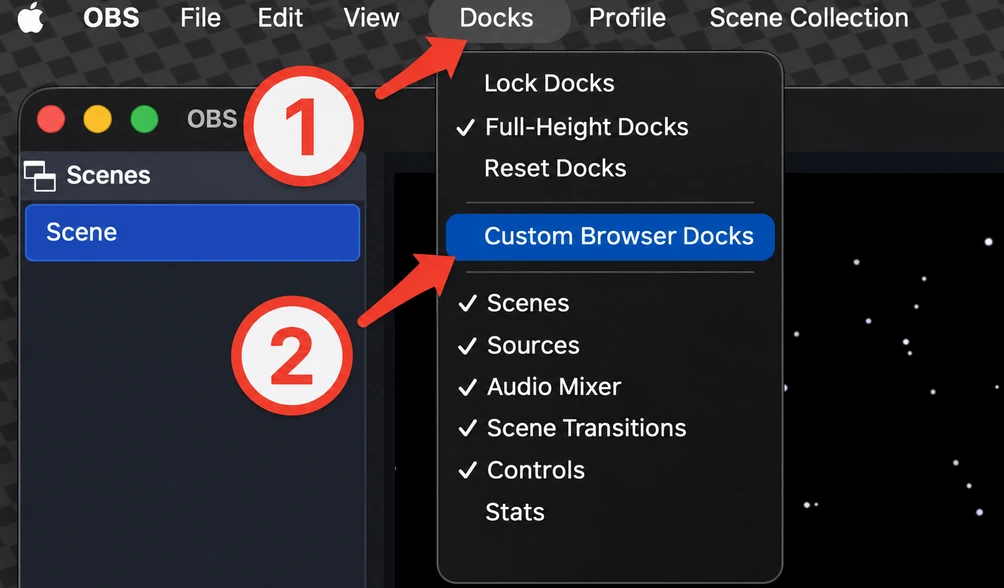
- Enter a name and the URL, then click Apply
Type a name you'll recognize (like "Effect Pad") under Dock Name, paste the Dock URL under URL, and click Apply or Close.
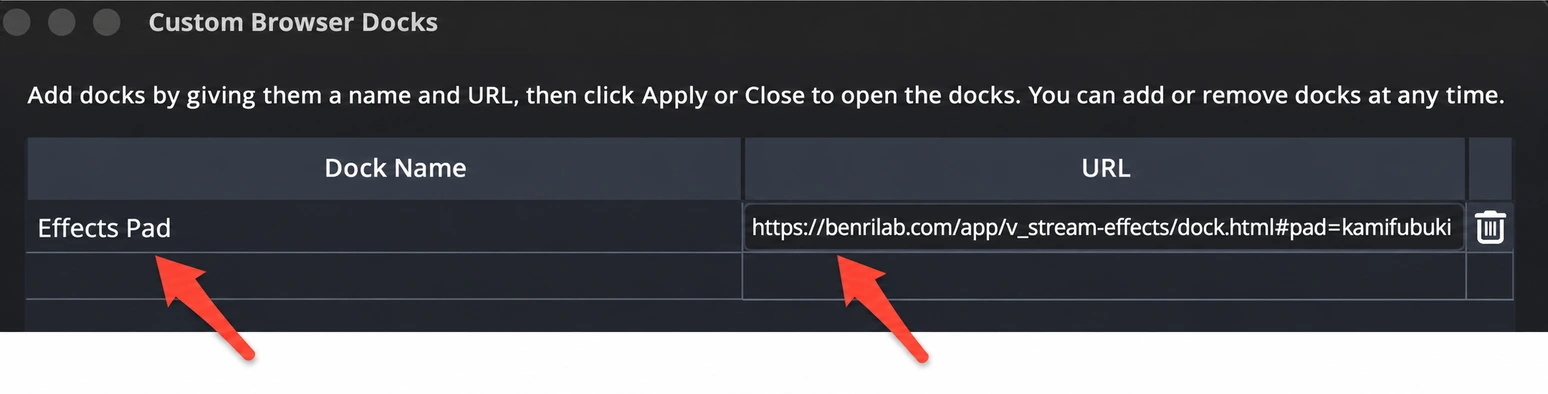
- Dock it inside OBS
A small window with your buttons pops up. Drag its title bar to an edge of the OBS window to dock it. Once it's in place, choose Docks → Lock Docks so it stays put.
- Make sure it's connected
With the Browser Source for your Overlay URL in the current scene, the dock will say "Connected to the overlay in OBS." Press a button, and once the effect shows up on your OBS canvas, you're done. To use keys 1–8, click inside the dock once first.
If you change your shortcuts or their order, copy the Dock URL again, paste it over the URL in the same row of Custom Browser Docks, and click Apply (adding a new row creates a second dock). Closed the dock by accident? Open the Docks menu and check the name you gave it (like "Effect Pad") to bring it back.
Seasonal calendar (default)
| Dates | Effect |
|---|---|
| Jan 1 – Jan 7 | New Year (gold dust and plum blossoms) |
| Jan 8 – Feb 6 | Winter (snow with buildup) |
| Feb 7 – Feb 14 | Valentine's Day (hearts) |
| Feb 15 – end of Feb | Winter (snow with buildup) |
| Mar 1 – Mar 19 | Plum blossoms |
| Mar 20 – Apr 15 | Cherry blossoms |
| Apr 16 – May 31 | Spring glow |
| June | Rain showers (rain and ripples) |
| Jul 1 – Jul 7 | Starry nights (stars and shooting stars) |
| Jul 8 – Aug 31 | Summer (bubbles from 5 a.m. to 7 p.m., fireflies from 7 p.m. to 5 a.m.) |
| Sep 1 – Oct 14 | Fall nights (fireflies and stars) |
| Oct 15 – Oct 31 | Halloween |
| November | Fall leaves |
| Dec 1 – Dec 25 | Christmas (snow with buildup) |
| Dec 26 – Dec 31 | Winter (snow with buildup) |
Streaming from the Southern Hemisphere? Turn on "Use Southern Hemisphere seasons" under Customize to shift the calendar by six months (snow in June through August, summer in December through February). If your stream runs past midnight, the next effect fades in over 3 seconds. Want the same effect all year? Choose "Fixed" and pick a particle type like Cherry blossom petals, Bubbles, Fireflies, Music notes (karaoke), or Concert glow sticks.
Using the Effect Pad (for subs, Super Chats, singing streams, birthdays, and anniversaries)
The Effect Pad plays an effect the moment you press a button. Celebration effects include Confetti, Party Popper, Fireworks, Coins, and Light Burst. Reactions include Hearts, Sparkle, Music Notes, Applause, Surprise, Question, Sweat Drop, Tears, Anger Mark, Gloom, and Zzz. Fireworks mix up their burst patterns and colors every time you press them. On this page, or when the dock has focus, you can also press keys 1–8 (shown in the top right of each button). You can add up to 8 effects to the Shortcuts row and swap them with the All effects list by dragging (long-press first on mobile) or with the − and + buttons. Your shortcut order becomes your dock buttons.
Reactions like hearts and music notes can appear in the center, top right, or top left, or anywhere you click or drag on the preview. Celebration effects fill the whole screen no matter where you set the position.
Keep particles off your face and gameplay
Set the display area to "Sides only" to keep the middle of the screen clear, or "Top half only" to keep particles off the bottom. Effect Pad effects ignore the display area (snow buildup is hidden with "Top half only" to keep the bottom clear).
To keep particles from covering your avatar, move this Browser Source below your avatar source (VTube Studio, for example) in the OBS Sources list. Particles will pass behind your model, which keeps your face clear and adds depth. In the "Just Chatting" preview, switch Particles to "Behind" to see how it looks.
Built to stay out of your way
- Particle colors (theme colors included) never use green or cyan, so they won't get keyed out if you use a green screen.
- The overlay never shows error messages or other text in OBS, and it skips fonts and ad scripts so it loads fast.
- Particle motion runs on your GPU, so it stays light even on long streams.
FAQ
I press the dock buttons, but nothing shows up in OBS.
Make sure the Dock URL is pasted into OBS under Docks → Custom Browser Docks. Buttons pressed on this page or in a regular browser like Chrome can't reach the overlay inside OBS. If the dock says "Overlay not found in OBS," add the Browser Source with your Overlay URL to the current scene. (If "Shutdown source when not visible" is checked in the Browser Source properties, the dock can't connect while the source is hidden.) Also, use an Overlay URL and Dock URL copied from the same page.
Can I pop confetti when my birthday or anniversary countdown ends?
It doesn't fire automatically, so press Confetti, Party Popper, or Fireworks in your dock the moment the countdown hits zero. You can press them again and again; each one layers on top without cutting off the last. You can make the countdown itself with the Countdown Timer.
Will the sample avatar or my uploaded image show up in OBS?
No. The avatar and chat in the "Just Chatting" preview and any screenshot you load with "My image" are only there to help you check the look (your image is never uploaded). OBS only shows the effects on a transparent background.
Can I trigger effects with OBS hotkeys?
Because of how browser sources work, effects can't be assigned to OBS hotkeys. Instead, when the dock has focus, you can press keys 1–8 to play your shortcut effects.
Will it slow down my stream?
Particle motion runs on the GPU, and the overlay skips fonts and ads in OBS, so the load is light. If it still feels heavy, lower the Amount or set the Browser Source FPS to 30 in OBS.
Will particles disappear if I use a green screen?
No. Particle colors (theme colors included) never use green or cyan, so chroma key won't remove them. The overlay background is already transparent, so you don't need a green screen for it in the first place.
What if my streaming app doesn't support browser sources?
Set the preview background on this page to "Green screen," then capture the preview area with window capture (or screen capture). Key out the green with your app's chroma key filter, and only the effects will remain. Effect Pad buttons pressed on this page will show up too.
Can I use the effects in a video editor?
Set the preview background to "Green screen" and screen-record the preview area (Win+Alt+R with Xbox Game Bar on Windows, or Shift+Command+5 on Mac). Import the recording into Premiere Pro, DaVinci Resolve, CapCut, or another editor and key out the green to layer just the effects over your video.
The snow buildup resets when I switch scenes.
Snow buildup starts over whenever OBS reloads the source. Raise the "Starting amount" to start with that much snow already on the ground (set it to the same value as Max height to start fully piled up).
Can I keep the same effect all year?
Yes. Under Customize, set Background effect to "Fixed" and pick something like Cherry blossom petals, Stars & shooting stars, or Music notes (karaoke). If you only want the button effects, choose "None."
Whose clock decides the date?
The date and time on the computer running OBS. Nothing is sent to a server.