
MIDI Visualizer from Audio
Turn Any Song into a Piano Roll Video
AI splits the parts. Your song lights up as glowing notes.
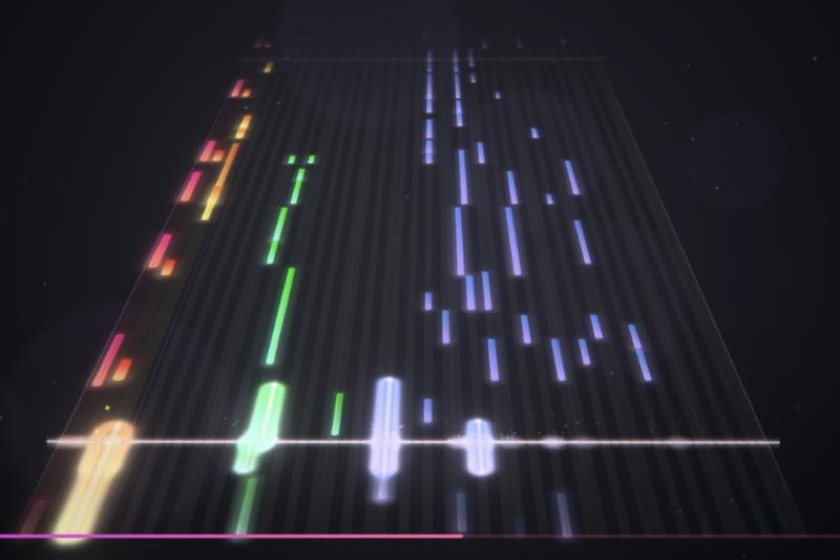
Just add a song.AI separates the vocals, bass, drums, and other instruments,then creates an MP4 of color-coded notes scrolling like a MIDI piano roll.
- 1Add a song
- 2Pick a style and part colors
- 3Click Create Video

Drop your song here
or choose a file
MP3, WAV, M4A, AAC, OGG, FLAC / Up to 60 minutes (30 minutes on mobile)
Longer files take more time. Your audio is not uploaded.
These effects light up when a note reaches the playhead. Turn off Glow to stop notes from lighting up at the line and remove the glow around the keys and playhead, including bloom. With Dissolve into Particles or Crumble into Sand on, notes don't stay on screen after the playhead. They break into particles and fade away. Crumble into Sand doesn't glow: notes break into fine grains right where they cross the line, then scatter and fade as they keep drifting. Glow shows best on a dark background and looks more subtle on light backgrounds.
AI (Spleeter) splits your song into vocals, other instruments, bass, and drums, then splits the drums into kick, snare & toms, and cymbals, each with its own color. The first time, the tool downloads an AI model of about 75 MB. Everything runs in your browser, and your audio is never sent anywhere.
Click to mute a part. Its sound and notes both disappear. Slide Detail to the left to show only the most prominent note at each moment, or to the right to pick up chords and smaller notes too. Changing the Drums color updates all three drum colors in matching shades.
Bold adds bigger sparks, a glowing playhead, and a shockwave ring on every kick. Subtle cuts the glow in half when notes reach the line. Bold works great for dance tracks and VJ visuals. Glow looks best on a dark background.
Smaller files that render faster, even on phones. Still sharp enough for social media.
Advanced (progress bar, fade, note thickness)
Gently raises the volume at the start and lowers it at the end, so the sound doesn't start or cut off abruptly.
Your video is ready
Your video is usually saved to your browser's download location, such as the Downloads folder. On iPhone, open it in the Files app and use Share to save it to Photos.
How to make a MIDI visualizer video from a song3 steps
- Add your song
Drop in an MP3, WAV, M4A, or other audio file, and AI starts splitting it into parts right away. The tool uses the whole song from the beginning, up to the first 10 minutes. When the analysis finishes, press Play to watch the preview.
- Pick a style and part colors
Choose Piano Roll, Tilted Roll, Mirror, Stage, Highway, or Radial, then set colors for vocals, other instruments, bass, and drums (kick, snare & toms, and cymbals). Picking one of the color palettes is a quick way to get a polished look.
- Try a 5-second test, then create your video
A quick test lets you check how the notes look and how long rendering will take, so you'll redo less. When it looks right, click Create Video and download the MP4.
How parts and colors workParts
Unlike a simple audio visualizer that only reacts to volume, this tool uses AI stem separation to tell the instruments apart, then turns each part into its own row of notes.
| Part | Shown as | How it's detected |
|---|---|---|
| Vocals | Pitch rows | Picks up pitches, note by note, from the voice that AI separates |
| Other instruments | Pitch rows | Picks up pitches from guitar, piano, synths, and more |
| Bass | Pitch rows (low range) | Picks up pitches in the bass range (E1–E4) |
| Kick | Bottom row | Detects hits in the low frequencies |
| Snare & toms | Second row from the bottom | Detects hits in the midrange |
| Cymbals | Third row from the bottom | Hi-hats and cymbals in the high frequencies. Longer ringing makes longer notes |
6 piano roll and visualizer stylesStyles
Piano Roll scrolls notes from right to left like a MIDI piano roll, and the keys light up at the playhead. It's the clearest way to follow the melody. Tilted Roll angles the piano roll so notes approach from the back right, adding depth that looks great in widescreen videos. Mirror reflects the notes above and below a center line. Drums sit in the middle and higher notes spread outward, creating a symmetrical, sound-wave look. Stage puts drums, vocals, other instruments, and bass on their own platforms, stepped from front to back and viewed head-on. Platforms farther back look smaller, which adds depth. The drums sit on the lowest platform up front to anchor the rhythm, so you can see at a glance which part is playing. Highway sends notes toward you down a 3D lane, with light and sparks at the hit line, perfect for dance tracks and rhythm-game-style videos. Radial pulls notes inward from the edges into a ring. With Bold effects, a shockwave spreads out on each kick. It stands out in square and vertical social posts.
When you pick Piano Roll, Tilted Roll, Mirror, or Stage, Hit Effects appear right below the styles. Mix and match Ripples (thin rings that spread from where notes hit the playhead), Lens Flare (streaks of light), Dissolve into Particles (notes break into particles after they pass), Crumble into Sand (notes break into fine, non-glowing grains right where they cross the line and scatter away), Rising Glow (soft light drifting upward), and Color Playhead by Part (the playhead glows in each part's color where notes hit), along with the classic Sparks. Glow is on by default. Turn it off for a cleaner look where notes don't light up when they hit the line.
Ideas for piano roll videosIdeas
Turn a new single or demo into a YouTube music video or lyric-free visualizer. Post a 30-second hook as a TikTok, Instagram Reel, or YouTube Short in a vertical layout. Show off a cover, remix, or beat with notes that move with every part, or mute the vocals to make a karaoke-style backing track video. For drum covers, mute the other parts so only the kick, snare, and cymbals light up.
Tips for a great-looking videoTips
Use a dark background to make the glowing notes and bloom stand out. For busy songs, slide Detail a little to the left on crowded parts. For solo instruments or acoustic songs, slide it to the right. For drum-driven songs, try muting vocals, other instruments, and bass so only the drums play and show.
Frequently Asked QuestionsFAQ
Does this create a real MIDI file?
No. This tool listens to your audio, detects pitches and drum hits, and turns them into a video that looks like a MIDI piano roll. It is not built for accurate transcription, so very fast or quiet notes may be skipped or shifted to a nearby pitch.
How do I make a piano roll video from an MP3?
Drop an MP3, WAV, M4A, AAC, OGG, or FLAC file into the tool. AI splits the song into parts, then you choose a style, colors, and aspect ratio. Try a 5-second test, then click Create Video to download an MP4.
Why does splitting the parts with AI take a while?
The first time you use the tool, it downloads an AI model of about 75 MB. Processing time depends on the length of the song and the speed of your device. A loading screen appears over the preview while it works, and you can play the preview as soon as it finishes.
Can I make a video without the vocals or drums?
Yes. After AI splits the parts, use the speaker buttons in Parts & Colors to mute vocals, other instruments, bass, or drums. Muted parts disappear from both the sound and the notes, in the preview and in your video. If nothing is muted, the original audio is used as is.
Does it work on iPhone and Android?
Yes, but AI part splitting is heavy work. It takes longer than on a computer, and long songs may stop partway. On a phone, we recommend trimming your audio to 30–60 seconds first with the MP3 & WAV Audio Cutter.
How long can my video be?
Each video can be up to 10 minutes. The tool uses your audio from the beginning, and if it is longer than 10 minutes, only the first 10 minutes are used. You can load audio up to 60 minutes long (30 minutes on mobile). To use a specific section, trim it first with the MP3 & WAV Audio Cutter.
Is it free? Is there a watermark?
Yes, it is free with no sign-up, and no watermark is added to your video.
Is my audio uploaded to a server?
No. AI part splitting and video creation both happen entirely in your browser.