
See where it's day and where it's night on Earth right now, on a 3D globe or a flat day/night map. This free world clock shows the day/night line (the terminator), dawn and dusk twilight, and the current time, time difference, and sunrise and sunset for 131 cities. It also works as a live Earth background in OBS.
World times
Select a city to turn the globe toward it.
Display settings
Viewing and streaming
Viewing mode fills the screen with the Earth and clock. Press Esc or the top-right button to exit.
This URL shows just the Earth and clock with your current settings. Use it on a TV, as a starting-soon screen, or as an OBS browser source (1920×1080 recommended) for gaming, Just Chatting, and VTuber streams.
Where is it day, and where is it night, right now?
This world clock calculates the Sun's position for the current moment and draws day and night on Earth just as they are. City lights glow on the night side, and a band of dawn and dusk twilight runs along the line between day and night. The globe turns slowly, with the stars, the Moon, and planets like Jupiter shown in their real directions. Keep it open to check the time, or just leave it running and watch the planet turn.
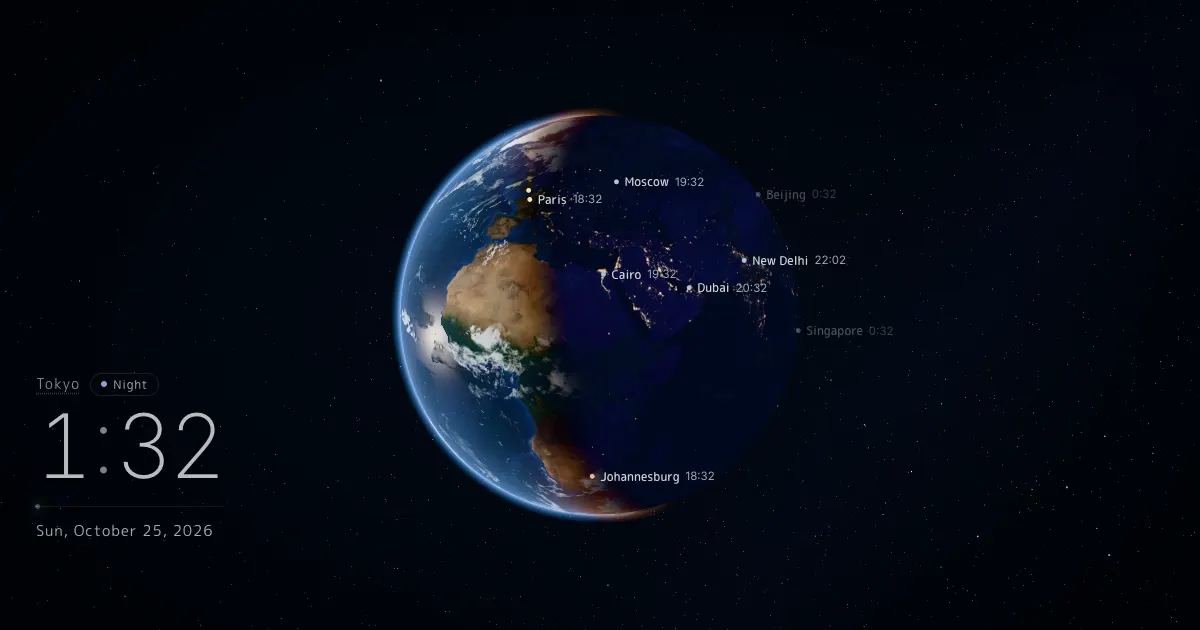
- 3D globe and 2D world map: One click unfolds the globe into a flat day/night map.
- World times: Pick from 131 cities. They line up under your local clock with the time difference, today or tomorrow, and whether the Sun is up.
- Clock designs: Choose Drift (thin floating digits), Orbit (particles circling a ring), or Stardust (digits drawn with particles of light).
- Check any spot: Click or tap the globe or map to see the local time, the Sun's altitude, and the next sunrise and sunset there.
- Made for streaming: Paste the dedicated URL into an OBS browser source for a moving Earth background on Twitch, YouTube, or any other platform.
How to use it
- When the page opens, you'll see Earth as it is right now. The clock in the lower left shows your device's local time.
- Drag to spin the globe. To zoom, use the + and − buttons, pinch on a trackpad, or hold Ctrl (⌘ on a Mac) and scroll. On a phone, pinch with two fingers.
- Use 2D and 3D in the lower right to switch between the flat map and the globe. Press (full screen) for viewing mode.
- Add or remove cities under World times. If you're on the East Coast, for example, add London and you'll see it's 5 hours ahead of you for most of the year. Use Display settings to turn clouds, city lights, stars, constellations, and more on or off.
Use it as an OBS background for Twitch and YouTube streams
A slowly turning Earth against a field of stars makes a calm background for a stream or a starting-soon screen. Run it behind gaming, Just Chatting, or study-with-me streams and you'll always know where it's night around the world. If you have viewers in other countries, the world times on screen are an easy way to ask, “What time is it where you are?” VTubers can layer their model on top for a broadcasting-from-space look.
- Under Display settings, choose a clock design, what to show, and the brightness.
- Under Viewing and streaming, click Copy URL. Your current settings are saved in the URL.
- In OBS, click + under Sources, choose Browser, paste the URL, and set the width to 1920 and the height to 1080.
- Move this source to the bottom of the list, then add your gameplay, model, or chat on top.
- Background only: Turn off “Show the clock on the stream view” to hide the clock. To get just Earth and the stars, also turn off “World times below the clock,” “City names and times on Earth,” “Moon and planet names,” and “Constellations.”
- Easier-to-read overlays: Lower the Brightness to push the background back so the things on top stand out.
- Long streams: To go easier on your PC, set Quality to Power saving before you copy the URL.
How to read the day/night line and twilight
The line that separates the sunlit half of Earth from the dark half is called the terminator, or the day/night line. On the globe, it's a great circle that wraps all the way around the planet. On a flat map, it turns into a curve. Around the March and September equinoxes, it runs almost straight from pole to pole. The closer we get to the June and December solstices, the more it bends, and one polar region gets 24-hour daylight (the midnight sun) while the other stays in polar night.
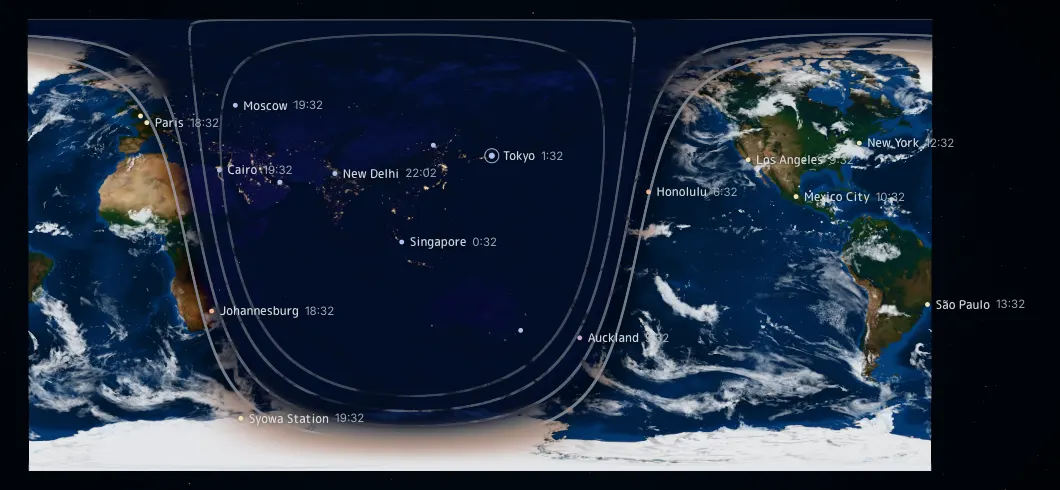
After sunset, the sky stays bright for a while. This is twilight, and it's divided into three stages based on how far the Sun is below the horizon. The globe shows it as a gradual fade from day to night, and turning on Twilight boundaries in the settings draws a thin line at each stage.
- Day
- The Sun is above the horizon (an altitude of 0° or higher).
- Civil twilight
- 0° to −6°. It's still light enough to be outside without artificial light.
- Nautical twilight
- −6° to −12°. The sky gets dark, but at sea the horizon is still visible.
- Astronomical twilight
- −12° to −18°. It's almost night, with only a faint glow left in the sky.
- Night
- Below −18°. The sky is as dark as it gets.
Sunrise and sunset times are calculated for the moment the top edge of the Sun meets the horizon (the Sun's center at −0.833°, including atmospheric refraction).
FAQ
Is it free?
Yes. There's no account to create and nothing to install.
How accurate are the day/night line and the times?
The Sun's position is calculated with standard astronomical approximations, so any error in the day/night line is too small to notice on the map. Times are based on your device's clock.
Are the clouds and city lights live?
No. The clouds are a NASA satellite composite that drifts slowly for a natural look, and the city lights come from NASA's 2016 nighttime imagery. The day and night areas and the directions of the Moon and planets are calculated for the current time.
Are the Moon and Jupiter really in those positions?
Their directions match the current time. The Moon is shown at about a quarter of its real distance, and Jupiter is drawn larger so it's easy to spot.
Does it handle Daylight Saving Time?
Yes. City times come from the time zone data built into your browser (the IANA Time Zone Database), so Daylight Saving Time changes are applied automatically. For example, New York is usually 5 hours behind London, but only 4 hours behind for a few weeks each spring and fall, because the US and the UK change their clocks on different dates.
Can I leave it open all day?
Yes. It stops drawing when the globe is off screen or the tab is in the background. To save battery on a laptop, set Quality to Power saving.
What if the globe doesn't show up?
The 3D globe and 2D map need WebGL2. Update your browser and make sure hardware acceleration (sometimes called graphics acceleration) is turned on in its settings. Even if the globe can't load, World times still shows each city's local time, time difference, and sunrise and sunset.
Can I use it on stream or on a TV?
Yes. The URL under Viewing and streaming shows only the Earth and clock, full screen. Add it as an OBS browser source to use it as a background for gaming or Just Chatting streams, or as a starting-soon screen.
Can VTubers use it as a stream background?
Absolutely, including on monetized streams. Put the source at the bottom in OBS and layer your model and overlays on top. To hide the clock, turn off “Show the clock on the stream view.” To remove text such as city names, also turn off “World times below the clock,” “City names and times on Earth,” “Moon and planet names,” and “Constellations” under Display settings.
Where are my cities and settings saved?
Only in your browser on this device. Nothing is sent to a server.
Imagery and data
- Daytime Earth: NASA Earth Observatory, Blue Marble: Next Generation (Reto Stöckli et al.)
- City lights: NASA Earth Observatory, Earth at Night (Black Marble) 2016 (Joshua Stevens and Miguel Román / Suomi NPP VIIRS)
- Clouds: NASA Visible Earth, Blue Marble: Clouds
- Moon: NASA Scientific Visualization Studio, CGI Moon Kit (Lunar Reconnaissance Orbiter data)
- Stars: Yale Bright Star Catalogue, 5th edition (Hoffleit & Warren)
- Constellation lines and names: based on d3-celestial (Olaf Frohn) (BSD 3-Clause). The lines are a visual guide to help you find each constellation.
Images have been resized and compressed for display. Use of NASA imagery does not imply endorsement by NASA. Positions of the Sun, Moon, and planets are calculated with approximations published by the U.S. Naval Observatory, the Astronomical Almanac, and JPL.