
Choose Custom colors to match your channel, brand, or artwork. Changing colors keeps the particle layout in place.
Create free particle overlays for your videos
Make sparkle, cherry blossom, snow, confetti, and firework effects, plus playful reaction accents. Choose from 68 presets, then adjust the colors, density, and speed to create custom particle overlays for music videos, YouTube edits, and live streams.
Download transparent MOV or WebM, a PNG sequence, or MP4 with a black or green screen background. You can also use a live OBS Browser Source. Free to use, with no account required. Rendering happens in your browser.
Preparing…
My particlesYour saved settings
Settings are stored only in this browser. Clearing browser data also clears this list.
1Choose an effect
2Make it yours
Colors
Style
%
%
%
%
You have reached the limit of 2,000 particles.
Direction
Layout
Fine-tuneMotion, blur, glow, depth, and opacity
%
%
%
%
%
Depth
Effect origin
The same seed recreates the same layout. Shuffle layout changes only this number.
3Download
Playback
Duration
Background color
Background color
Resolution
Frame rate
Use in monetized videos, streams, and client projects without attribution. Do not sell or redistribute the standalone assets. Need help? Compare export formats.
Use live in OBS
Paste the link into an OBS Browser Source for continuous particles on a transparent background.
Keep creating
How to make a particle overlay
Create a separate animated effect to place over your footage. You do not need to upload a video or install an app.
- Choose an effect
Pick a preset such as glitter, confetti, snow, or cherry blossoms. Watch it move against a sample background.
- Customize the look
Match your channel or brand colors. Adjust density, size, speed, wind, blur, and glow. Shuffle the layout to try another arrangement.
- Download or use in OBS
Export a video or PNG sequence for your editor. For a live stream, copy an OBS link and add it as a Browser Source.
68 particle effects you can customize
Create sparkle overlays, falling confetti, snow effects, flower petals, and animated reaction accents. These examples show frames from the tool against its night-sky preview background. Your download can have transparency, a black background, or a chroma key background. Click an effect name to try it.

Sparkles & Light
- Tiny lights shimmer as they drift downward. Try gold glitter for intros, product reveals, and celebratory videos.
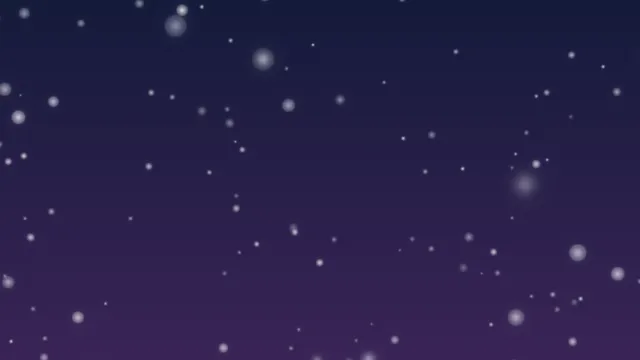
- Small specks of light drift slowly through the frame for a subtle atmospheric overlay.
- Glowing particles float gently upward for dreamy music videos and uplifting scenes.
- Large, out-of-focus lights drift across the screen for romantic scenes, night footage, and ballads.
- Tiny stars twinkle as they move sideways. Use them for space scenes, fantasy edits, and night skies.
- Four-point stars flash and fade across the frame. Add highlights around lyrics, products, or artwork.
- Parallel streaks glide diagonally and fade away. Adjust Wind to change their angle.
- Nearly still stars twinkle at different speeds for a calm, animated night-sky background.
Petals & Nature
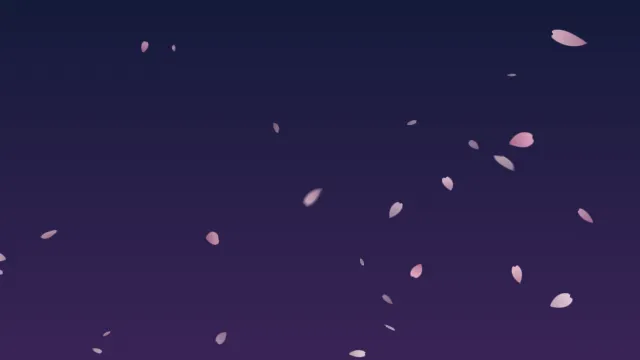
- Cherry blossom petals flutter and turn in the breeze. Adjust the wind for a gentle drift or a petal shower.
- Broad rose petals tumble slowly downward for romantic videos, weddings, and dramatic scenes.
- Colorful fall leaves sway and tumble through the frame for seasonal videos.
- Slender feathers rock from side to side as they float gently down.
- Butterfly silhouettes flutter and drift for nature scenes, spring videos, and whimsical edits.
Snow, Rain & Water
- Snow falls quietly in different sizes, with larger blurred flakes in the foreground for added depth.
- Thin, translucent rain streaks fall at a slight angle for rainy scenes and moody edits.
- Transparent bubbles sway as they rise. Try them in playful videos and underwater scenes.
- Six-point snowflakes rotate gently as they fall for winter and holiday videos.
- Fine snow blows sideways in strong wind for a more dramatic winter effect.
Cute & Playful
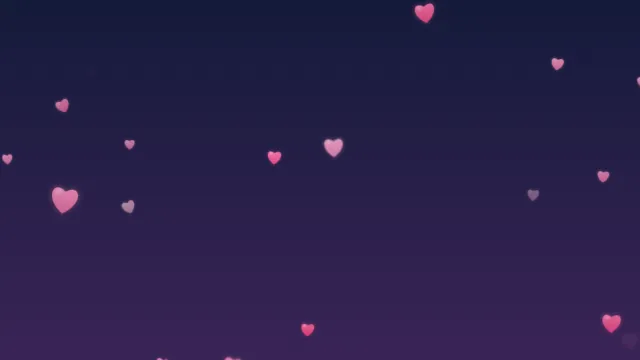
- Small hearts sway as they rise. Reduce the density to keep faces and captions clear.
- Music notes bob upward for cover songs, performance videos, and music streams. This is a visual effect with no audio.
- Playful five-point stars spin downward for colorful intros and cheerful edits.
- Colorful balloons sway as they rise for birthdays, celebrations, and milestone videos.
Celebrations
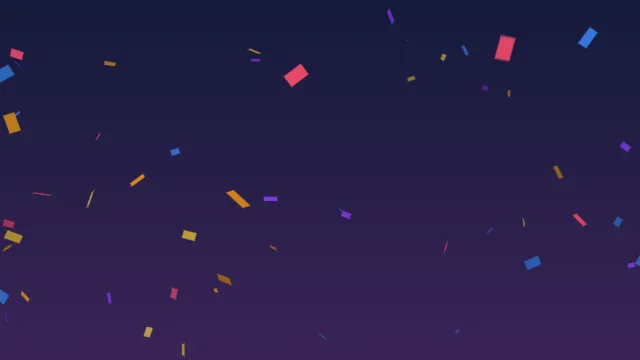
- Colorful confetti flutters and spins downward for celebrations, birthdays, and stream milestones.
- Confetti launches from both lower corners, spreads out, and falls for wins, reveals, and congratulations.
- Small flowers and petals shower down for weddings, spring events, and celebrations.
- Flowers and petals launch from both lower corners, spread out, and drift down.
- Gold coins tumble and catch the light for rewards, achievements, and gaming videos.
- Gold coins launch from both lower corners, spread out, and tumble down for wins and rewards.
- Warm lanterns drift upward into the night sky for festivals and peaceful evening scenes.
- Ornaments, stars, and snowflakes sway downward for Christmas videos and holiday streams.
Cinematic & Dark
- Hot sparks drift upward with irregular motion for fire effects, dramatic intros, and fantasy scenes.
- Angular shards rotate slowly and catch the light. You can also switch to a one-shot burst.
- Streaks of light stream outward from the center for space travel and fast transitions between moments.
- Glowing embers drift downward and cool to gray ash for cinematic and dramatic scenes.
- Blank paper scraps flutter and turn as they fall for atmospheric or dramatic edits.
Digital
- Square particles and short lines move together for tech videos and futuristic backgrounds.
- Glowing lines and dots fall in vertical columns for a digital rain overlay.
- Square pixels burst outward for game highlights, wins, and retro visual effects.
Japanese Style
- Soft lights wander and blink, creating a quiet summer-night atmosphere.
- Rounded plum blossoms spin as they drift down for floral and Japanese-inspired scenes.
- Watercolor goldfish swim sideways with gently moving tails for tranquil, aquatic scenes.
- Paper cranes flap their wings as they glide across the frame.
- Small pieces of gold foil flutter down and catch the light for elegant titles and festive edits.
- Pale blue flames drift and flicker for supernatural, fantasy, and spooky scenes.
Reaction Accents
Place these small animated accents beside a face, caption, or product. Drag the origin marker in the preview or use its arrow keys. Most can also repeat as a loop.
- A large heart and smaller hearts float up and fade. Place them beside a face, title, or product.
- A heart pulses with short accent lines for excitement, affection, and nervous reactions.
- A heart cracks into two pieces that fall apart for sad or disappointed reactions.
- Large and small sparkles flash and disappear. Use them to highlight a smile, object, or reveal.
- A light bulb pops into view with rays of light for ideas, tips, and discoveries.
- One light-blue sweat drop slides down and fades for awkward or nervous reactions.
- A comic-style anger symbol pops in and pulses for annoyed or frustrated reactions.
- An exclamation mark pops up and wiggles for surprises, discoveries, and important moments.
- A question mark appears and tilts for confusion, curiosity, and questions.
- Music notes bounce upward for happy reactions and playful moments. This effect does not include audio.
- Different-sized Z letters float upward one after another for sleepy or relaxed scenes.
- Vertical lines descend for shock, disappointment, and gloomy reactions.
- Small stars circle above a point you choose for dizzy or stunned reactions.
- Diagonal cheek lines appear and tremble for shy, embarrassed, or affectionate reactions.
- Flames flare up with rising embers for determination, anger, and fired-up reactions.
- Lightning flashes and shakes for shocks, sudden realizations, and high-energy moments.
- An arrow bounces to draw attention to a button, product, or detail. Choose which direction it points.
- Rings spread outward and fade. Position them at a tap, click, impact, or point of interest.
- Small flowers bloom in sequence and fade for cheerful, cozy, and cute reactions.
- A coin jumps up, spins, and sparkles for rewards, savings, and achievement moments.
One-Shot Effects
- Light particles spread from a point you choose. Position the burst to highlight a reveal or beat.
- Party poppers fire confetti from the lower left and right for a quick celebration.
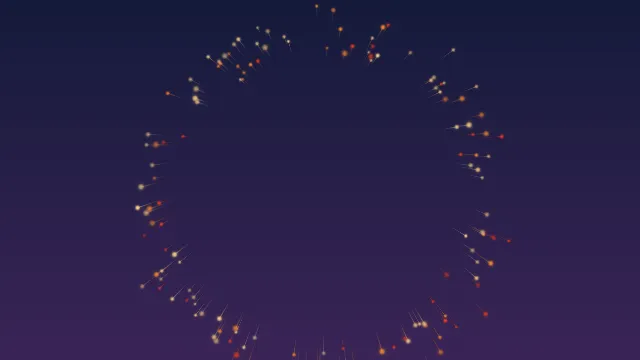
- A ring of light bursts open at a point you choose, then trails downward as the colors change.
- Hearts pop outward from a point you choose for reactions, likes, and romantic moments.
Make an overlay that fits your video
Customize the effect before downloading it: match your brand colors, keep particles clear of faces and captions, or increase the density for a big reveal. Your original footage stays in your usual editor.
- Match your colors: choose a palette or set a custom main color and generate two matching colors automatically.
- Change the energy: use Subtle for a quiet verse, Standard for everyday edits, or Vibrant for a chorus or celebration.
- Keep a consistent look: export widescreen, vertical, and square versions using the same colors and seed.
- Edit it later: reopen a saved item from My particles or keep a settings link for another session.
Settings stay in this browser. No account is required, and clearing browser data removes saved settings.
Which export format should I use?
For a transparent video overlay, choose MOV with alpha (ProRes 4444) or WebM with alpha. A PNG sequence also preserves transparency. MP4 exports use a background that you can blend or key out in your editor.
| Format | Background | How to use it |
|---|---|---|
| MOV with alpha ProRes 4444 | Transparent | Place above your footage in an editor that supports ProRes alpha, such as Premiere Pro, DaVinci Resolve, or Final Cut Pro. Files can be large. |
| WebM with alpha | Transparent | A compact option for OBS Media Sources and web pages. Support in video editors varies. |
| Black MP4 | Black | Set the blend mode to Screen. Best for bright effects such as glitter, bokeh, and embers. |
| Green screen MP4 | Green, blue, magenta, or a custom color | Remove the background with chroma key. Useful for petals, hearts, and confetti, including in mobile editors. |
| Background MP4 | Custom solid color or gradient | Use as an animated background for a starting-soon screen, lyric video, or title. |
| PNG sequence ZIP | Transparent | Import as an image sequence in compatible compositing software. Settings and import instructions are included in English. |
How to use a black background overlay
Put the MP4 on a track above your footage and set its blend mode to Screen. Black disappears while bright particles remain visible. This is useful for sparkle overlays and light effects. Dark colors may disappear too, so choose an alpha format or chroma key for deep-red petals or black feathers.
How to use a green screen overlay
Place the MP4 above your footage and use your editor’s chroma key control to remove the background color. If the particles contain green, choose a blue or magenta background instead.
Chroma key exports use solid particles without blur, glow, or partial transparency for cleaner edges. The preview shows this change. To keep soft lighting and blur, choose an alpha format or use a black background with Screen blending.
Add a live particle overlay to OBS
- Choose a looping effect and customize its appearance.
- Click Copy OBS link.
- In OBS, add a Browser source and paste the link into its URL field.
- Set the width and height to your stream dimensions, such as 1920 × 1080.
The background stays transparent and the particles keep moving. The link contains your effect settings, so you can use it on your streaming computer. To use a downloaded file instead, export WebM with alpha and add it as a Media Source. One-shot effects require a downloaded file.
Ideas for videos and live streams
YouTube and music videos
Use glitter for a chorus, drifting dust for a quiet verse, or petals for an illustrated music video. Dial back the density around lyrics and faces.
TikTok, Reels, and Shorts
Choose 9:16 for vertical video. Add heart pops, sparkles, or an arrow beside a product, caption, or reaction.
Gaming and celebrations
Use confetti bursts, coins, fireworks, or pixel explosions for wins, milestones, birthdays, and stream highlights.
Seasonal streams
Add snow for winter, cherry blossoms for spring, falling leaves for autumn, or Christmas ornaments for holiday streams.
The generated effects are visual only and do not include sound. You can use them in monetized and client videos without attribution. Selling or redistributing the standalone assets is prohibited.
Create seamless particle loops
Loop presets connect the last frame back to the first without fading to black or thinning out at the end. Repeat the clip end to end in your editor to cover the length of a song, scene, or stream.
- Duration: choose 5, 10, or 15 seconds, or enter any whole-second duration from 2 to 20 seconds. The same range is available for every format and frame rate.
- Check the seam: use the repeat-arrow button beneath the preview to play the last second and watch it return to the start.
- Slow particles: in a short loop, some particles fade in and out before crossing the screen. Increase the duration or speed if you want them to travel farther.
Frequently asked questions
Is this particle overlay generator free?
Yes. You can create and download particle overlays for free, with no account or app installation required.
Can I use the effects in monetized videos or client projects?
Yes. You can use them in monetized YouTube videos, live streams, and client projects without attribution. You may not sell or redistribute the generated overlays as standalone stock footage, asset packs, or templates.
Can I download particle effects with a transparent background?
Yes. Choose MOV with alpha (ProRes 4444), WebM with alpha, or a PNG sequence. MP4 exports use a black, chroma key, or custom color background. The first MOV export loads a conversion engine of about 19 MB. ProRes is a trademark of Apple Inc.; this tool uses an FFmpeg implementation and is not certified by Apple.
How do I add a sparkle overlay to a video?
Download a Black MP4, place it above your footage, and set its blend mode to Screen in your editor. Black disappears, leaving the sparkles visible. This works best for bright effects such as glitter, bokeh, and embers. Use a transparent format or chroma key for dark petals or feathers.
Can I use these overlays in CapCut or a mobile video editor?
Yes. For glowing effects, use Black MP4 and Screen blending. For petals, hearts, or confetti, use Green screen MP4 and remove the background with chroma key. Available formats and controls depend on your editor and device.
How do I make a particle overlay for OBS?
Choose a looping effect and click Copy OBS link. Add a Browser source in OBS, paste the link into the URL field, and set its width and height to your stream dimensions. The background stays transparent. You can also download WebM with alpha and loop it as a Media Source. One-shot effects require a downloaded file.
Do the animations loop seamlessly?
Loop presets connect the last frame to the first without a fade to black or a drop in particle count. Repeat the clip end to end in your editor. Choose any whole-second duration from 2 to 20 seconds. One-shot effects play once rather than forming a seamless loop.
Can I change the colors or density later?
Yes. Your settings remain in My particles in this browser. Reopen an item, edit it, and download again. Copy settings link also lets you keep a link that restores the effect. Clearing browser data removes locally saved settings.
Do I need to upload my video?
No. This tool creates the overlay only. Add it to your footage in your usual video editor. Rendering and export run on your device; your particle settings and generated files are not uploaded. The site still makes network requests for page assets, standard analytics, and the MOV conversion engine.
Can I export in 4K or 60 fps?
Yes. Choose Full HD or 4K, widescreen 16:9, vertical 9:16, or square 1:1, and 24, 30, or 60 fps. Loop durations are 2–20 seconds and one-shot durations are 2–8 seconds. MOV and PNG exports can exceed 1 GB at 4K; the tool stops and explains if an export is expected to exceed about 3.5 GB.
Why will my particle overlay not export?
MP4 and WebM export require WebCodecs support. Try an up-to-date version of Chrome, Edge, or Safari. MOV and PNG sequences do not require WebCodecs. If export fails, shorten the duration or switch from 4K to Full HD. Export availability also depends on your device and browser.
Can I sell or redistribute the particle files?
No. You may use the effects within your videos and streams, but may not sell or redistribute the standalone generated assets, including in stock libraries, asset bundles, or templates.