
Add Text & Dates to Any PDF

Fill out applications and forms without printing

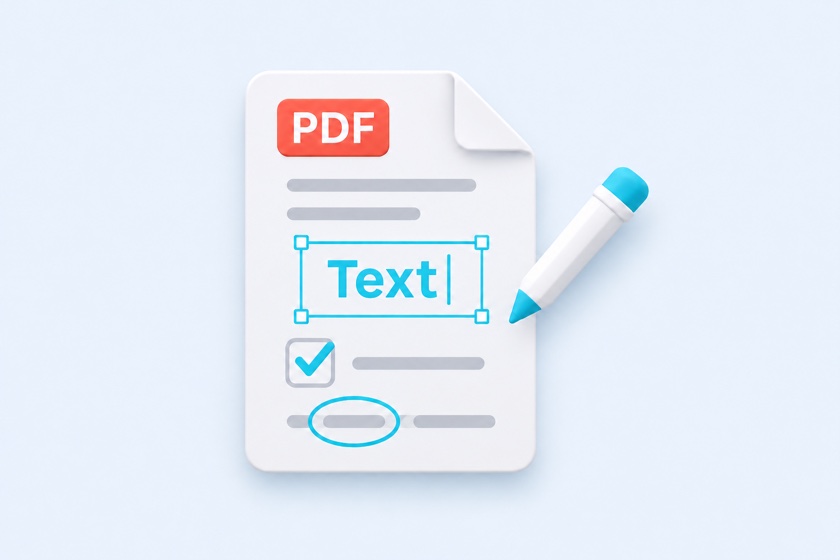
Click anywhere on the page to type your name, address, a date, or a ✓, or add arrows, circles, and boxes.
US date format (MM/DD/YYYY) and letter spacing for boxed fields. Your PDF never leaves your device.

Drop your PDF here

or choose a file

One PDF file · applications, consent forms, intake forms, surveys, and more

Your PDF, file name, and the text you type are never uploaded to a server
01

Type on any PDF, even if it isn't a fillable formFeatures

Made for everyday forms

Fill out job applications, rental applications, school permission slips, and medical intake forms. Dates use the US format (MM/DD/YYYY) by default, and letter spacing lines up characters in boxed fields like ZIP codes and phone numbers.

Works on your phone

Choose a tool and tap the page. Drag anything you place to move it. Fill out a PDF you received by email and send it right back without a printer or scanner.

No sign-up, no uploads

Everything from opening to saving happens in your browser. Your name, address, and other personal information never leave your device.

02

How to add text to a PDFHow to

  1. Choose your PDF

    Select or drop the PDF you want to fill out. It's never uploaded to a server.

  2. Pick a tool and click the page

    With Text, a text box opens right where you click. Date inserts the date you set. Circle and Box draw a shape as you drag, and Arrow is drawn from the tail to the tip. Drag items to move them and use the corner handles to resize.

  3. Click “Create PDF,” then “Download PDF”

    Check the file name and download. Links and form field values in the original PDF are kept.

03

Tips for filling out PDF forms without printingTips

Use letter spacing for boxed fields

For fields with one box per character, like ZIP codes, phone numbers, or dates, type the whole value first and then increase Letter spacing until each character sits in its own box.

Match the date format

Most US forms expect MM/DD/YYYY (11/05/2026). Choose “November 5, 2026” for letters and contracts, or DD/MM/YYYY and ISO (YYYY-MM-DD) for international paperwork. Use the date picker for dates of birth.

Circle or check your answers

For choices like Yes / No, drag the Circle tool around your answer. A single tap adds a standard-size oval. To mark a checkbox, type “✓” or “X” with the Text tool.

For multi-page forms with the same layout, select a date or other item on page 1 and use “Copy to other pages” to place it in the same spot on every page.

04

Add text vs. watermark vs. redactCompare

ToolWhat it addsPlacementBest for
Add Text to PDF (this tool)Text, dates, arrows, circles, boxesOne at a time (can copy to the same spot)Filling out and answering forms
Watermark PDFSemi-transparent text or logoAll pages at onceDRAFT, SAMPLE, CONFIDENTIAL
Redact PDFBlack boxesSelected areasRemoving personal info before sharing
PDF Page NumberPage numbersAll pages at onceReports and handouts

A white text background can cover existing text or lines, but the covered text remains in the PDF. To remove information for good, use Redact PDF.

05

Frequently asked questionsFAQ

QCan I fill out a PDF form without printing it?

Yes. Type your name, address, date, and other details, save the PDF, and send it by email or upload it directly. If the recipient requires a handwritten (wet) signature, follow their instructions.

QCan I add text to a PDF on my iPhone or Android phone?

Yes. Pick a tool and tap the page to place text or a date. Drag items with your finger to move them. To edit text, select it and tap “Edit text,” or double-tap it.

QIs the text I add searchable?

Yes. Text is drawn as vector outlines so it stays sharp at any zoom, and a text layer is included so you can search and copy it in any PDF viewer.

QCan the text I add be removed later?

Your additions are drawn on top of the original PDF, so they can be moved or removed with PDF editing software. This is not tamper-proofing. To permanently remove information, use Redact PDF.

QDoes it work with fillable PDF forms?

Yes. Existing form field values are kept. Form fields are always displayed on top of the page, so text placed over a field may be hidden. The tool warns you before creating the PDF if anything overlaps.

QAre there characters I can't use?

Emoji and a few rare symbols aren't included in the fonts and can't be added. If you type one, a message appears below the text box so you can replace it. Password-protected PDFs and XFA forms aren't supported.

QWhat happens if I add text to a digitally signed PDF?

Adding text changes the PDF, so the digital signature may show as invalid. If a signed PDF needs to be filled out, check with the sender first.

QIs my PDF uploaded to a server?

No. Opening, editing, and saving all happen in your browser. Neither your text nor your file name is sent anywhere.