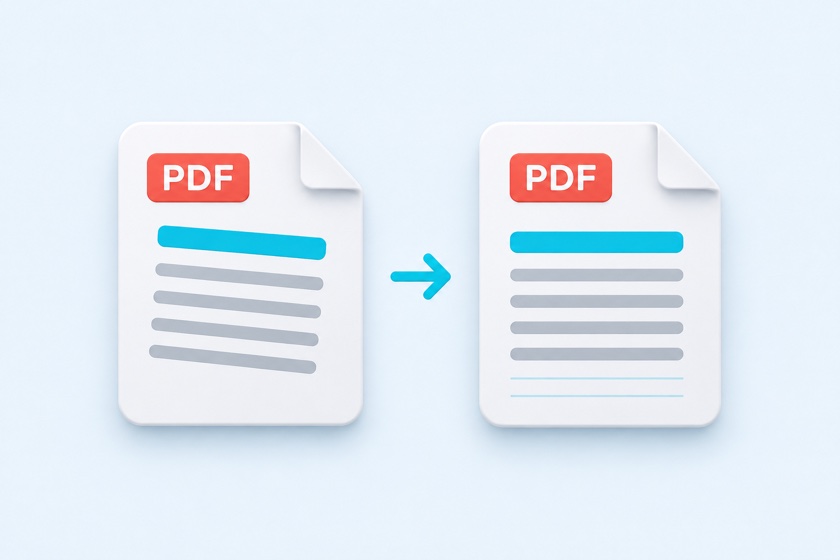

Automatic skew detection
The tool searches each page in 0.05° steps for the angle where lines of text run perfectly level. It works on letters, contracts, receipts, tables, and even vertical text. Pages that are already straight are left alone.

Automatically find and fix tilted pages in scanned PDFs
Checks every page for skew and straightens it. Fine-tune any page in 0.1° steps.
No re-rendering, so image quality stays the same and OCR text stays searchable. Your PDF never leaves your device.
Drop your PDF here
or choose a file
One PDF file · scanned documents, receipts, or book scans
Large PDFs may take a moment.
Compare the lines of text with the grid to check that the page is straight. The grid is not added to your PDF.
Enter a number from -15 to 15.
Use the ← → keys to adjust by 0.1° (hold Shift for 1°).
Changing this rescans all pages. Angles you set by hand are kept.
With “Leave white” or “Zoom in,” content at the very edge of the page may be slightly cut off.
The tool searches each page in 0.05° steps for the angle where lines of text run perfectly level. It works on letters, contracts, receipts, tables, and even vertical text. Pages that are already straight are left alone.
Adjust any detected angle with the slider or the ±0.1° buttons. Pages the tool can't read, such as photo-heavy pages, can still be fixed by entering the angle yourself.
Pages are never re-rendered as new images. The tool simply rotates each page's original content, so scans stay sharp and the OCR text layer rotates with it and remains searchable.
Pick a scanned PDF and the tool immediately starts checking every page. You can review and adjust page 1 while the rest are still being scanned.
Compare the text with the grid lines. If something is off, adjust it with the slider or the ±0.1° buttons. Hold “Hold to compare” to see the page before correction.
Pages that don't need correction are kept exactly as they were. For long documents, the PDF is created once all pages have been checked.
If you scanned a book with two pages per image, split them first. Left and right pages are often tilted differently, so deskewing a spread as one page can't fix both.
Straighten each page individually.
Finally, trim blank borders and scanner shadows. Cropping after deskewing gives you clean, square edges.
| Deskew PDF (this tool) | Organize PDF Pages | |
|---|---|---|
| Rotation | 0.1° steps (up to ±15°) | 90° or 180° |
| How it's set | Detected automatically per page, adjustable by hand | Chosen by hand |
| Best for | Slightly crooked scans | Sideways or upside-down pages |
This tool doesn't detect upside-down or sideways pages. Fix the page orientation first, then deskew.
No. Pages are not re-rendered as new images. The tool only adds a rotation to each page's original drawing instructions, so your scanned images are used as-is. Because the file is re-saved, the file size may not be exactly the same.
Yes. The text layer rotates together with the page, so you can still search and copy text after deskewing. The order of copied or searched text may vary by PDF viewer.
Pages that are mostly photos or have very little text are marked “Unclear” and left as-is. Open that page and set the angle with the slider or the ±0.1° buttons. If the skew is found right at the edge of the detection range, the tool also leaves the page alone and lets you know, just to be safe.
This tool fixes small tilts of a few degrees. To rotate pages by 90° or 180°, use Organize PDF Pages.
No. It corrects pages that are flat but rotated. It can't fix the trapezoid shape from photos taken at an angle or curved book pages.
Links, annotations, and form fields don't rotate with the page and would end up in the wrong place, so pages that contain them are skipped and kept as they are.
Yes. You can open, deskew, and save PDFs in Safari on iPhone or Chrome on Android. Long PDFs are scanned faster on a computer.
No. Skew detection and correction both happen in your browser. File names and page images are never sent anywhere.