Keep original page content
The tool changes the visible area of each copy of a source page. It does not turn the page into an image, so existing text remains searchable.

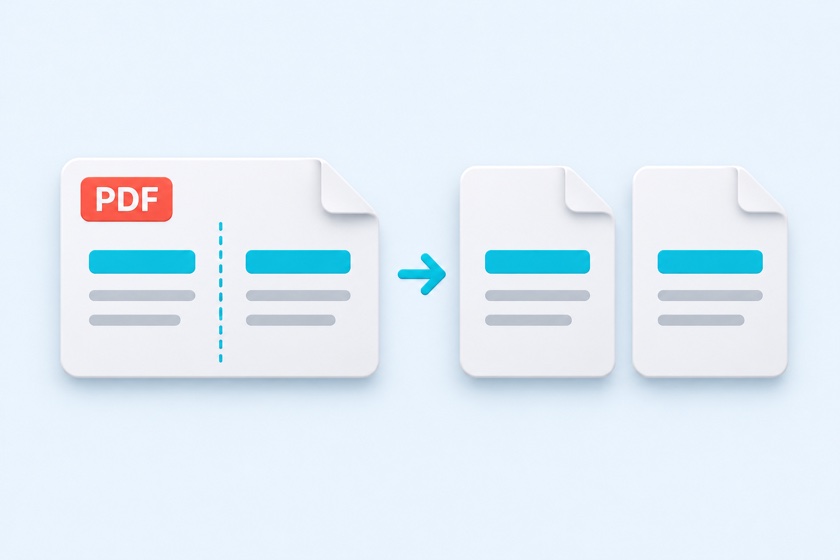
Turn scanned book spreads into individual pages.
Split each spread left and right, or top and bottom. Adjust the split line, choose the reading order, and keep single-page covers intact. Your PDF stays in your browser.
Drop your PDF spread here
or use the button to choose a file
One PDF at a time. Landscape spreads are detected and split automatically.
Large PDFs may take a little longer.
Split direction
For off-center scans, use the red preview line to align the split with the book gutter.
Front and back covers
Numbers show the output page order. Use each thumbnail to turn splitting on or off for that page.
The hidden half of each split page remains in the file. To remove sensitive content, use Redact PDF.
The tool changes the visible area of each copy of a source page. It does not turn the page into an image, so existing text remains searchable.
Use left-to-right order for most English books. Choose right-to-left for manga and other books that begin on the right half.
Auto mode splits landscape spreads for a left/right split. Keep the first or last page intact, or override the decision on any thumbnail.
Drop one PDF into the tool or click Choose PDF. Your file is opened in your browser without uploading it.
Choose Left / right or Top / bottom. The red line shows the cut; thumbnail numbers show the output order. Adjust the line if the scan is off-center.
Click Split and download to save all output pages in one PDF. The file name ends with _split.pdf.
| Setting | Output order | Best for |
|---|---|---|
| Left to right | Left half, then right half | Most English books, magazines, and catalogs |
| Right to left | Right half, then left half | Manga and right-bound or vertically written books |
The split position can be adjusted from 40% to 60% in 0.5% steps. Try 49% or 51% when the book gutter does not line up with the middle of the scan.
Turn one two-page scan into two individual pages for reading on a phone or e-reader.
Join two existing pages into one spread for viewing, sharing, or printing.
Trim blank borders after separating the two halves to make the text easier to read.
Splitting changes visibility, not the underlying content. The hidden half remains in the PDF. Use Redact PDF when content needs to be removed.
No rasterization is performed. Existing text, graphics, and images retain their original form. Existing text can still be searched or copied.
No. The hidden half remains in the file and can be revealed by changing the visible page area in a PDF editor. Use Redact PDF to remove sensitive content.
Yes. Keep the first and last pages intact with the cover options, or turn splitting off on individual thumbnails.
Yes. Choose Top / bottom. Auto mode then targets portrait pages; choose Split every page to include all orientations.
Yes. The controls support touch input. Large PDFs may need more memory than a phone has available; try fewer pages or use a computer.
No. Loading, previews, processing, and output generation take place in your browser. No account or installation is required.