Automatic margin detection
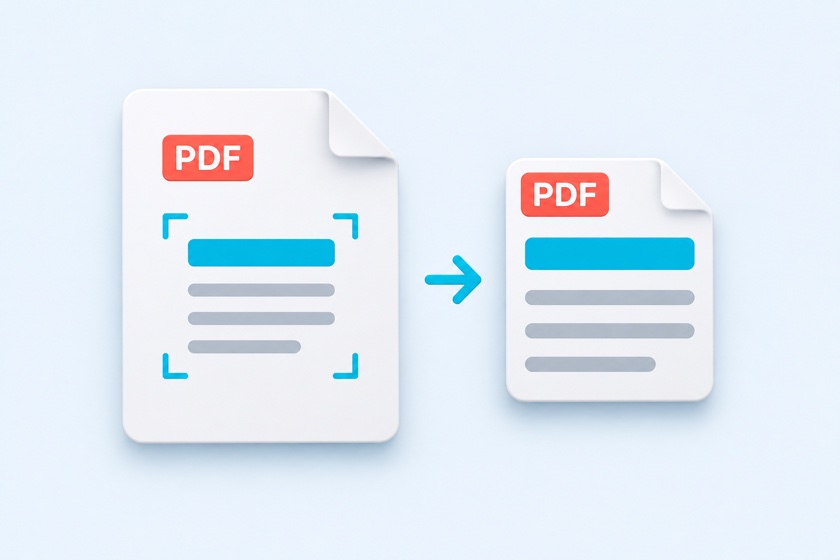
The tool detects content on each page and keeps a small margin around it. The default margin is 3 mm, about 0.12 inches. Blank pages are kept intact.

Auto-detect white margins and make scanned pages easier to read.
Trim the blank borders around scanned books, articles, and reports. Use one crop for every page, separate odd and even pages, or adjust the frame by hand. Text and graphics stay in their original form.
Drop your PDF here
or use the button to choose a file
One PDF at a time. Margins are detected automatically after loading.
Large PDFs may take a little longer.
Drag the corner or edge handles to adjust the crop. On a computer, drag inside the frame to move it.
For gray scan backgrounds, lower this value to detect more margin. Default: 245.
Trim amounts (current page, mm)
No removable margins were found. Lower the White threshold or choose Manual crop to set the area yourself.
Cropped-out content remains in the PDF and is only hidden. To remove sensitive information, use Redact PDF.
The tool detects content on each page and keeps a small margin around it. The default margin is 3 mm, about 0.12 inches. Blank pages are kept intact.
Cropping changes the visible page area rather than rasterizing the page. Existing text, vector graphics, and images retain their original form.
Use separate crops for odd and even pages when a scanned book has different inside margins. Drag the frame handles to correct individual pages.
Cropping only hides content outside the visible area. It does not remove sensitive information. Use Redact PDF to remove selected content.
Drop one PDF into the tool or click Choose PDF. Your file is opened in your browser without uploading it.
The blue frame marks the area that will remain visible. Browse the page thumbnails and drag the corner or edge handles to adjust any page.
Click Crop and download to save one PDF. The file name ends with _cropped.pdf. Open the downloaded file to check the result.
| What you see | What to try |
|---|---|
| Gray or yellow borders remain | Lower the White threshold from 245 toward 230–200. |
| Dark bands at the edges | Enable Ignore edge shadows. Manually adjust pages where shadows remain. |
| Small spots prevent cropping | Enable Ignore small specks and spots. |
| Faint text gets cut off | Raise the White threshold or increase the Margin to keep. |
Use a combined content area for the document. Text stays aligned and page sizes stay consistent while reading.
Use one content area for odd pages and another for even pages. This is useful for books with alternating gutters.
Fit the crop tightly around each page. Useful for figures or charts, but output page sizes can vary.
No rasterization is performed. The tool changes PDF page boundaries, so original text and graphics remain searchable and retain their existing quality.
No. Hidden content remains inside the file and can be revealed with PDF editing software. Use Redact PDF for information you need to remove.
Usually not by much, because the underlying content is retained. Use Compress PDF if you need a smaller file.
The cropped page has a smaller visible size. Fit to page can enlarge it to the selected US Letter, A4, or other paper size. Review the print preview first.
Yes. The controls support touch input. Large PDFs may need more memory than a phone has available; try fewer pages or use a computer.
No. Loading, previews, processing, and output generation take place in your browser. No account or installation is required.